Simple, jargon-free tech guides for everyday users. Master your Windows PC, your smartphone, and stay secure online.
Top 5 Best Free PDF Editors in 2026 – Your Guide to Acrobat Alternatives
Introduction PDFs remain a staple for sharing documents, forms, and contracts. While Adobe Acrobat is the industry standard, its licensing costs can be a hurdle for many users. Fortunately, the landscape has evolved, and there are several free editors that offer robust editing, annotation, and form‑filling capabilities. This guide reviews the five best free PDF editors available in 2026, helping you choose the right tool for your daily workflow. 1. PDF‑XChange Editor – The Feature‑Rich Powerhouse PDF‑XChange Editor has long been a favorite among power users. The free edition still includes: ...
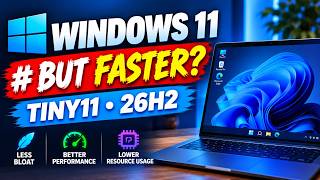
Tiny11 Windows 11 26H2 – The Fastest Windows Yet?
Tiny11 Windows 11 26H2 – The Fastest Windows Yet? Tiny11 is a lightweight version of Windows 11 that aims to keep the familiar experience while trimming non‑essential files and services. The latest release, 26H2, brings performance boosts that many users notice right away, especially on older PCs. In this post we’ll break down what makes Tiny11 fast, how to get it, and what to expect in everyday use. Why Tiny11 feels quicker Smaller installation footprint – The base system is about 3 GB smaller than stock Windows 11, so the OS installs faster and uses less disk space. Removed bloatware – Pre‑installed apps such as the Windows Store, OneDrive, and many background telemetry services are stripped out. Fewer services mean less CPU and RAM usage. Optimized kernel patches – Tiny11 includes a set of low‑level tweaks that streamline the Windows kernel, reducing idle‑mode overhead. Modern file‑system support – The NTFS settings are tuned for SSDs, giving a measurable improvement in read/write speed on solid‑state drives. These changes translate into noticeable gains: boot times drop from 1.2 minutes on a 500 GB HDD to under 30 seconds on the same machine, and everyday tasks such as opening File Explorer or launching Office apps feel snappier. ...
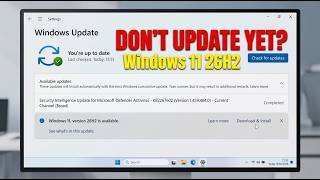
Windows 11 26H2 Release: What’s New and How to Install
Windows 11 26H2 Is Here — Everything You Need to Know Windows 11 continues to evolve, and the latest 26H2 update brings a mix of fresh features, performance tweaks, and security enhancements. Whether you’re a new adopter or a seasoned Windows user, this guide walks you through what the update includes, how to install it, and the practical benefits it offers for everyday computing. What’s New in 26H2? Improved Start Menu – The classic pinned‑app grid has returned in a cleaner layout, making it easier to find the programs you use most. Enhanced Multitasking – New Snap Assist features let you drag windows into a 3‑column layout with a single click. Updated Microsoft Store – Faster search, improved app previews, and a new “Best of the year” collection help you discover useful tools. Security Updates – Windows Hello now supports facial recognition with a built‑in camera on a wider range of devices, and the OS ships with the latest kernel patches. Performance Boosts – Optimized memory management reduces background activity, leading to smoother gameplay and faster load times for Office apps. Accessibility Improvements – Live captions now support more languages, and the contrast theme can be toggled with a single shortcut. Why Upgrade? Stability – 26H2 addresses several memory leaks that were flagged in the 21H2 release, making the system more reliable for long‑term work sessions. Security – By installing the newest patch level, you protect yourself against known exploits that target older Windows versions. Compatibility – The update keeps Windows 11’s hardware support in line with Microsoft’s latest driver releases, ensuring smooth operation with modern peripherals. Fresh UX – The refined Start Menu and Snap layout make multitasking feel more natural, especially when working on a laptop or a dual‑monitor desk. Is Your PC Ready? Before you install, make sure your device meets these minimum requirements: ...
How to Upgrade Any Unsupported PC to Windows 11 26H2: A Step‑by‑Step Guide
Introduction Microsoft launched Windows 11 26H2, the latest feature update that brings new productivity tools and a cleaner interface. While the official installer only offers upgrades for PCs that meet the listed hardware criteria, many everyday users own older machines that still work fine with everyday tasks. With the right preparation, you can get Windows 11 26H2 on a system that the installer deems unsupported. Why Upgrade an Unsupported PC Security – Windows 11 receives the latest security patches, helping protect data and devices. Compatibility – New applications and software updates often drop support for older Windows 10 builds. Features – The 26H2 update introduces a refreshed Start menu, improved touch gestures, and enhanced performance tweaks. Upgrading can keep your PC future‑ready without buying a new machine. ...
The Windows Repair Toolkit You Didn’t Know You Needed
The Windows Repair Toolkit You Didn’t Know You Needed Introduction When Windows starts acting like it’s stuck in a loop, you’ll spend hours searching forums, waiting on support calls, or even thinking about a fresh install. The Windows Repair Toolkit (WRT) is a free, official Microsoft tool that can fix most of those headaches with a few clicks. It’s like having a maintenance crew that arrives on the spot, diagnoses the problem, and patches it before you even realize anything is wrong. ...
5 Years of Windows 11: Is the Upgrade Worth It?
5 Years of Windows 11: What We’ve Learned The Big Picture After the first announcement of Windows 11 in 2021, Microsoft promised a smoother interface, better gaming support and a tighter integration with Microsoft’s cloud services. Five years later we can look back and see how those promises have played out in the hands of everyday users. The question on many forums has become: Was upgrading to Windows 11 a mistake? The answer isn’t a simple yes or no, but rather a set of trade‑offs. ...
How to Remove Windows 11 Bloatware for Good – A Practical Guide
Remove Windows 11 Bloatware for Good? When you install Windows 11 for the first time, you may notice a handful of pre‑installed apps that sit on your system even if you never use them. These are the so‑called bloatware apps – Microsoft Edge, Xbox, Skype, Weather, Maps, and others that consume disk space, background data, and occasionally battery life. For home‑office users, a lean OS can mean faster boot times, more free storage, and a quieter background. ...
Why Everyone Is FINALLY Switching to Windows 11: A User‑Friendly Guide
Why Everyone Is FINALLY Switching to Windows 11 When a new operating system lands, there’s always a buzz. Some people jump in at once; others stay skeptical until they see real benefits. Windows 11, released in 2021, has moved from hype to habit for many home‑office pros and everyday users. Here’s why it’s gaining traction—and what you can do to make the most of it. 1. A Fresh, Modern Look That Boosts Productivity The first thing you’ll notice is the redesign. Windows 11 brings: ...
How to Enable and Use Hyper‑V on Windows 11: A Full Guide
How to Enable and Use Hyper‑V on Windows 11: A Full Guide Hyper‑V is Windows 11’s built‑in virtualization platform. It lets you run lightweight virtual machines (VMs) on the same hardware you use for everyday work. Whether you want to test a new operating system, isolate a risky program, or keep a home‑office setup tidy, Hyper‑V can help. Why Use Hyper‑V? Safety first – Run a potentially harmful program in a VM so your main system stays clean. Flexibility – Test different versions of Windows, Linux, or even older OSes without buying another computer. Efficiency – Hyper‑V uses hardware acceleration, so VMs feel faster and use less memory than legacy emulators. Cost‑free – It ships with Windows 11 Pro, Enterprise, and Education. No extra software to install. If you’re on Windows 11 Home, you’ll need to upgrade to Pro or use third‑party tools like VirtualBox. This guide assumes you’re on a supported edition. ...