How to Spot & Avoid Common Online Scams

How to Spot and Avoid Common Online Scams: A Comprehensive Guide

Introduction to Online Scams The internet has become an essential part of our daily lives, and with its numerous benefits, it also comes with some risks. One of the most significant risks is online scams. These scams can lead to financial loss, identity theft, and damage to your reputation. In this article, we will discuss how to spot and avoid common online scams. Types of Online Scams There are several types of online scams, including: ...

July 12, 2026
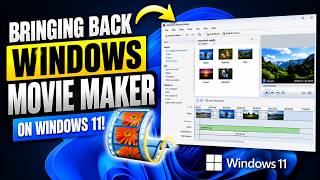
Bringing Back Windows Movie Maker on Windows 11

How to Bring Back Windows Movie Maker on Windows 11

Bringing Back Windows Movie Maker on Windows 11 Windows Movie Maker was a popular application for editing and creating movies on Windows operating systems. However, it was discontinued by Microsoft in 2017. If you have recently upgraded to Windows 11 and are looking for a way to bring back Windows Movie Maker, you are in luck. In this blog post, we will explore the different methods you can use to install and run Windows Movie Maker on Windows 11. ...

July 11, 2026
How to Clean C Drive in Windows 11 (Boost PC Performance)

How to Clean C Drive in Windows 11 for Better Performance

Introduction to Cleaning C Drive in Windows 11 Cleaning the C drive in Windows 11 is essential to boost your PC’s performance. Over time, your computer accumulates a significant amount of unnecessary files, temporary data, and other items that occupy a substantial amount of space on your hard drive. This clutter can slow down your computer, making it less efficient and more prone to errors. In this guide, we will walk you through the steps to clean your C drive effectively, ensuring your PC runs smoothly and efficiently. ...

July 10, 2026
Windows 11 Is Still Broken? 10 Things Microsoft Needs to Fix

10 Critical Fixes for Windows 11: Enhancing Performance, Security, and User Experience

Introduction to Windows 11 Issues Windows 11, the latest operating system from Microsoft, has been available for some time now. Despite its sleek new design and enhanced features, many users are still experiencing a range of issues. From compatibility problems to performance woes, it seems like Windows 11 is still a work in progress. In this post, we’ll explore the top 10 things Microsoft needs to fix in Windows 11. ...

July 9, 2026
10 FREE SOFTWARE That Should Be On EVERY PC! 2026

10 Essential Free Software for Your PC in 2026

Introduction to Free Software In today’s digital age, having the right software on your PC can make all the difference in your productivity and overall computing experience. While many people are willing to pay for software, there are plenty of free alternatives that can provide similar, if not identical, functionality. In this article, we’ll explore 10 free software options that should be on every PC, covering a range of needs from office work to security and entertainment. ...

July 8, 2026
10 FREE SOFTWARE That Should NEVER Be On ANY PC! 2026

10 Free Software to Avoid for a Secure and Fast PC

Introduction to Free Software Risks Free software can be a boon for individuals and businesses alike, offering a cost-effective solution for various tasks. However, not all free software is created equal, and some can pose significant risks to your computer’s security and performance. In this article, we’ll explore 10 free software applications that should never be on any PC due to their potential to cause harm. Understanding the Risks Before we dive into the list, it’s essential to understand why some free software can be problematic. Here are a few reasons: ...

July 7, 2026
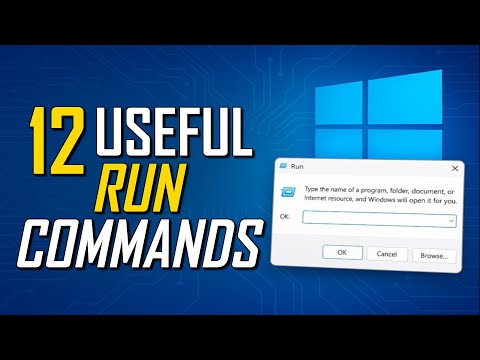
12 Useful Windows RUN COMMANDS Every User Should Know! 2026

12 Essential Windows Run Commands for Everyday Users

Introduction to Windows Run Commands Windows Run commands are a set of shortcuts that can help you quickly access various features and settings in your Windows operating system. These commands can save you time and effort, and can be especially useful for those who prefer using the keyboard over the mouse. What is the Windows Run Dialog Box? The Windows Run dialog box is a small window that allows you to enter commands to access various Windows features and settings. You can open the Run dialog box by pressing the Windows key + R on your keyboard. ...

July 6, 2026
Stop Using Windows Wrong – 20 Settings to Fix Now!

20 Essential Windows Settings to Fix for a Better Computing Experience

Introduction to Optimizing Windows Settings Most of us use Windows daily without realizing that a few simple setting adjustments can significantly enhance our computing experience. This guide will walk you through 20 essential settings to fix and optimize your Windows usage, making your daily tasks more efficient and enjoyable. 1. Update Windows Ensure your Windows is up to date. Updates often include fixes for bugs and improvements for performance and security. Go to Settings > Update & Security > Windows Update. 2. Customize Your Start Menu Personalize your Start menu to make it more accessible and user-friendly. Right-click on the Start button and select Settings to begin customizing. 3. Manage Notifications Notifications can be distracting. Learn to manage them for a more focused work environment. Go to Settings > System > Notifications & actions. 4. Enhance Security with Windows Defender Activate Windows Defender for robust malware protection. Navigate to Settings > Update & Security > Windows Security. 5. Backup Your Data Regular backups are crucial to prevent data loss. Use the Backup settings in Control Panel or explore third-party solutions for more options. 6. Optimize Power Settings Adjust your power settings to either prioritize performance or battery life, depending on your needs. Access this through Settings > System > Power & sleep. 7. Improve Performance Regularly clean up temporary files and system files to maintain your system’s performance. Use the Disk Cleanup tool found in the Start menu. 8. Customize Your Desktop Make your Windows experience more enjoyable by personalizing your desktop with themes, wallpapers, and more. Right-click on an empty area of your desktop and select Personalize. 9. Manage Default Apps Ensure that your preferred apps are set as default for various tasks. Navigate to Settings > Apps > Default apps. 10. Enable Night Light Reduce eye strain by enabling Night Light, which adjusts the screen’s color temperature. Find this setting in Settings > System > Display. 11. Use Focus Assist Minimize distractions by turning on Focus Assist, which limits notifications during certain times or activities. Access this feature through Settings > System > Focus assist. 12. Activate OneDrive Backup for Files Automate the backup of your important files to OneDrive for easy access and recovery. Explore OneDrive settings in the Settings app or the OneDrive application. 13. Adjust Sound Settings Personalize your sound settings for a better audio experience. Go to Settings > System > Sound. 14. Explore Accessibility Features Discover and utilize Windows’ accessibility features to enhance your computing experience. Find these options in Settings > Ease of Access. 15. Utilize Storage Sense Automatically free up disk space with Storage Sense. Enable this feature in Settings > System > Storage. 16. Update Drivers Keep your hardware drivers updated for optimal performance and compatibility. Use the Device Manager (Press Win + X and select Device Manager) to update drivers. 17. Customize the Taskbar Make your taskbar more functional and personalized. Right-click on an empty area of the taskbar and select Taskbar settings. 18. Set Up a Guest Account Create a guest account for when others need to use your computer, keeping your main account secure. Navigate to Settings > Accounts > Family & other users. 19. Use the Built-in Troubleshooter Diagnose and fix common issues with Windows’ built-in troubleshooter tools. Find these tools in Settings > Update & Security > Troubleshoot. 20. Review and Adjust Privacy Settings Be in control of your data and privacy by reviewing and adjusting Windows’ privacy settings. Access these settings through Settings > Privacy. By applying these settings, you can significantly enhance your Windows experience, making it more tailored to your needs, secure, and efficient. Regularly reviewing and adjusting these settings will ensure you get the most out of your Windows computer. ...

July 5, 2026
5 ALL-NEW FREE SOFTWARE You Didn't Know Existed!

5 Amazing Free Software Alternatives You Never Knew Existed

Introduction to Free Software In today’s digital age, it’s easy to get caught up in the idea that you need to spend a lot of money on software to get the best tools for your computer. However, there are many free software options available that can help you stay productive, creative, and secure without breaking the bank. What is Free Software? Free software is software that is available to use at no cost. This doesn’t mean that it’s low quality or lacking in features, but rather that the developers have chosen to make it available for free. Often, free software is open-source, which means that the code is available for anyone to view, modify, and distribute. ...

July 4, 2026