Introduction to Windows Run Commands
Windows Run commands are a set of shortcuts that can help you quickly access various features and settings in your Windows operating system. These commands can save you time and effort, and can be especially useful for those who prefer using the keyboard over the mouse.
What is the Windows Run Dialog Box?
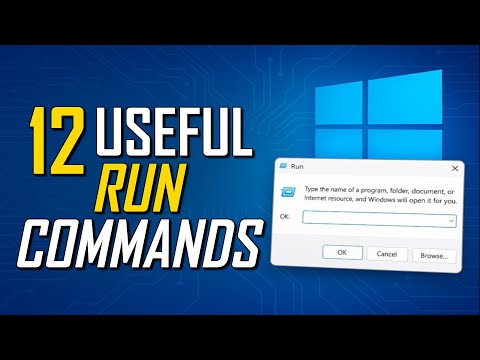
The Windows Run dialog box is a small window that allows you to enter commands to access various Windows features and settings. You can open the Run dialog box by pressing the Windows key + R on your keyboard.
12 Useful Windows Run Commands
Here are 12 useful Windows Run commands that every user should know:
- cmd: Opens the Command Prompt, a powerful tool that allows you to execute commands and scripts.
- control: Opens the Control Panel, where you can access various system settings and features.
- msconfig: Opens the System Configuration utility, which allows you to configure system settings such as startup programs and services.
- regedit: Opens the Registry Editor, a powerful tool that allows you to edit the Windows registry.
- taskmgr: Opens the Task Manager, which allows you to manage running programs and system resources.
- msinfo32: Opens the System Information utility, which provides detailed information about your system hardware and software.
- devmgmt.msc: Opens the Device Manager, which allows you to manage and configure system devices.
- diskmgmt.msc: Opens the Disk Management utility, which allows you to manage and configure system disks and volumes.
- gpedit.msc: Opens the Local Group Policy Editor, which allows you to configure system policies and settings.
- inetpl: Opens the Internet Properties dialog box, which allows you to configure internet settings and options.
- netplwiz: Opens the User Accounts dialog box, which allows you to manage user accounts and settings.
- sysdm.cpl: Opens the System Properties dialog box, which allows you to configure system settings such as computer name and workgroup.
Tips and Tricks
Here are some tips and tricks to help you get the most out of Windows Run commands:
- Use the Tab key to auto-complete commands and file names.
- Use the Up and Down arrow keys to navigate through previously entered commands.
- Use the F7 key to display a list of previously entered commands.
- Use the F8 key to display a list of file and folder names that match the current command.
Conclusion
Windows Run commands are a powerful tool that can help you quickly access various Windows features and settings. By learning these commands, you can save time and effort, and become more productive and efficient in your daily work. Whether you are a beginner or an experienced user, Windows Run commands are an essential part of the Windows operating system that can help you get the most out of your computer.