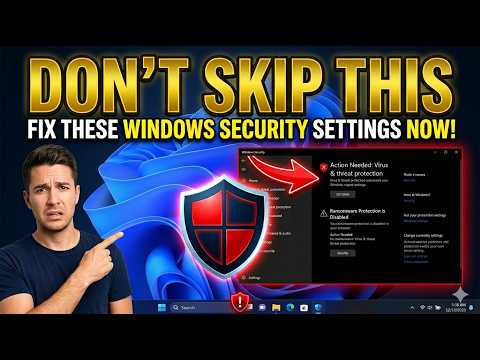
Introduction to PC Security
When you first set up your new PC, it’s essential to take steps to secure it from potential threats. Cybersecurity is a critical aspect of owning a computer, and there are several measures you can take to protect your device and your personal data. In this article, we’ll explore five essential security steps for your new PC.
Step 1: Install Antivirus Software
Antivirus software is a crucial component of PC security. It scans your computer for malware, viruses, and other types of malicious software, and helps to remove or quarantine any threats it detects. There are many different antivirus programs available, both free and paid. Some popular options include Norton, McAfee, and AVG.
Choosing the Right Antivirus Software
When selecting an antivirus program, consider the following factors:
- The level of protection it offers
- The frequency of updates and scans
- The impact on your PC’s performance
- The cost, if any
Step 2: Enable Firewall Protection
A firewall is a network security system that monitors and controls incoming and outgoing network traffic. It helps to block unauthorized access to your PC and can prevent hackers from stealing your data. Windows has a built-in firewall, but you may also want to consider using a third-party firewall program for added protection.
Configuring Your Firewall
To enable the Windows firewall, follow these steps:
- Go to the Control Panel
- Click on System and Security
- Click on Windows Defender Firewall
- Click on Turn Windows Defender Firewall on or off
- Select the option to turn the firewall on for both private and public networks
Step 3: Keep Your Operating System Up to Date
Keeping your operating system (OS) up to date is vital for maintaining the security of your PC. Updates often include patches for newly discovered security vulnerabilities, which can help to prevent exploits. To ensure you receive the latest updates, make sure your PC is set to automatically download and install them.
Updating Your OS
To check for updates in Windows, follow these steps:
- Click on the Start button
- Click on Settings
- Click on Update & Security
- Click on Windows Update
- Click on Check for updates
Step 4: Use Strong Passwords and Enable Two-Factor Authentication
Using strong, unique passwords for all of your accounts is essential for protecting your personal data. A strong password should be at least 12 characters long and include a combination of uppercase and lowercase letters, numbers, and special characters. Two-factor authentication (2FA) adds an extra layer of security by requiring a second form of verification, such as a code sent to your phone or a fingerprint scan, in addition to your password.
Best Practices for Passwords and 2FA
- Use a password manager to generate and store complex passwords
- Enable 2FA whenever possible
- Avoid using the same password for multiple accounts
- Change your passwords regularly
Step 5: Be Cautious with Email Attachments and Links
Email attachments and links can be used to spread malware and phishing scams. Be cautious when opening attachments or clicking on links from unknown sources, and never provide sensitive information in response to an unsolicited email.
Safe Email Practices
- Avoid opening attachments from unknown senders
- Never click on suspicious links
- Verify the authenticity of emails before responding or providing information
- Use spam filters to help block malicious emails
Conclusion
By following these five essential security steps, you can significantly reduce the risk of your PC being compromised by cyber threats. Remember to always be vigilant when using your computer, and take steps to stay informed about the latest security threats and best practices.