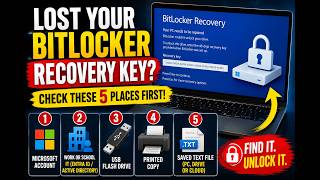
Lost Your BitLocker Recovery Key? Try These 5 Secret Locations!
If you’re a Windows user who enabled BitLocker for extra security, you might have saved the recovery key to a USB stick or a printed sheet. But what if you misplace that key? Panic can set in quickly, especially if a computer is locked and you need to recover data. The good news is that Microsoft provides a few built‑in ways to locate your key, and a few common places you may have saved it unknowingly. This post walks you through five practical spots to check before you give up.
1. Your Microsoft Account (online)
When you set up BitLocker, the wizard offers to save the recovery key to your Microsoft account. If you accepted, the key is stored securely on Microsoft’s servers. To retrieve it:
- Log into https://account.microsoft.com/devices on any browser.
- Find your device under the Devices section.
- Click the device name and look for a BitLocker recovery keys link.
- Select the key you need and copy or print it.
If you never used a Microsoft account or declined the prompt, skip to the next location.
2. A USB Flash Drive or External Storage
Many people keep the recovery key on a USB drive as a quick‑access backup. Check every removable storage you own:
- Plug in each USB stick, external HDD, or SD card.
- Search for files named BitLockerRecoveryKey, RecoveryKey, or Key. The file is a simple text document.
- If you use password managers that store files, double‑check those directories too.
Tip: Some users label the drive or the file with a descriptive name; look for anything that references Windows, BitLocker, or encryption.
3. Your Printed Documents or Notes
It’s common to print out the recovery key or jot it down on a sticky note. Go through:
- Notebooks, planners, or sketchbooks.
- Sticky notes on the monitor or desk.
- Any printed documents that include a long string of numbers and letters separated by dashes.
If you found the key, keep it in a safe place but make another backup (see section 5).
4. Your Email or Cloud Storage
Some users email themselves the key or store it in a cloud folder like OneDrive, Google Drive, or Dropbox. Look for:
- Emails with subject lines like BitLocker recovery key or Encryption key.
- Cloud folders labeled Backups, Important, or Security.
- Shared folders that might contain the key.
Because the recovery key is a plain text file, it can be opened in any text editor. Be sure to delete or secure it after use.
5. System Backup and Recovery Media
If you created a system image or backup using Windows Backup or a third‑party tool, the recovery key may be embedded in that image. Steps to find it:
- Open Backup Settings – Go to Settings → Update & Security → Backup → More backup options → Backup history.
- Locate the backup file – The backup is usually stored on an external drive or network location you specified.
- Extract the key – Some backup utilities store the BitLocker key in a subfolder named Recovery Keys or Encryption. Open any .txt file you find.
If you used a third‑party backup tool like Macrium Reflect or Acronis, refer to its help documentation for “recovery key” or “BitLocker” options.
Quick Checklist to Save Your Recovery Key for Future
- Create a digital backup: Save the key as a .txt file and encrypt it with a strong password. Store it in a password manager or an encrypted container.
- Print a copy: Keep it in a secure location separate from your computer.
- Use a key escrow service: Some businesses or advanced users use dedicated key‑management services.
- Set up a second Microsoft account: In case the first one is compromised.
Final Thoughts
The BitLocker recovery key is the lifeline that unlocks your encrypted drives. Losing it can feel like losing a door key to a house locked behind a steel lock. Fortunately, Microsoft and common user habits provide several avenues to retrieve the key. By checking your Microsoft account, USB drives, printed notes, email, and backup media, you’ll almost certainly find it. If you still can’t locate it, you may need to reset the PC, which will erase all data on that drive.
Take the time now to set up a reliable backup plan for future protection. A small habit now prevents a large headache later.