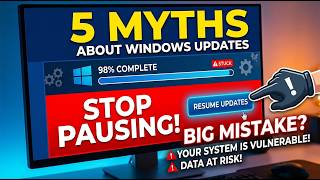
5 Windows Update Myths You Need to Stop Believing
When your computer asks for an update, the first instinct for many is to push it aside, fearing it might slow things down or eat up data. These fears often stem from misconceptions that have been circulating for years. The good news? Most of them are simply false. Understanding what’s actually happening can save you time, data, and a lot of frustration.
Myth 1: Updates Always Slow Down Your PC
One of the most common worries is that a new Windows update will make everything sluggish. The reality is that Microsoft’s update teams run extensive performance tests before pushing changes. In many cases, updates include driver optimizations, memory management tweaks, and security patches that actually make the system run smoother.
- Older hardware: If your device is a decade old, a major update might introduce features that require more memory or newer graphics capabilities. In such cases, you might feel a temporary dip in performance.
- Modern hardware: For most laptops and desktops built in the last five years, updates bring minor adjustments that keep the OS running at peak efficiency.
To avoid surprises, keep your drivers up to date and monitor your system after large updates. If you notice a slowdown, it’s usually temporary and resolves itself once the system finishes installing and optimizing.
Myth 2: Disable Automatic Updates to Save Bandwidth
Another myth is that turning off automatic updates saves data. In truth, skipping updates leaves your computer vulnerable to security exploits that can cost you far more in the long run. Windows does, however, offer ways to control when and how much data is used.
- Schedule update times: Set your PC to update during off‑peak hours or when you’re on Wi‑Fi.
- Metered connections: On Windows, you can mark your network as metered. The OS will then download only critical patches and postpone large feature updates.
- Pause for a few days: If you need a quick break, pause updates for 7–10 days. Afterward, resume and let the system catch up.
By using these built‑in tools, you get the security benefits of updates while keeping data usage under control.
Myth 3: Windows Updates Delete Personal Files
A common fear is that installing updates will wipe your photos, documents, or custom settings. That’s not how Windows works. Before making changes, the update process creates a backup of critical files and settings. If anything goes wrong, you can roll back to the previous state.
- Restore points: Windows creates a restore point before each major update. This allows you to revert the OS to its prior configuration.
- User data protection: Personal files in Documents, Pictures, and Downloads folders are left untouched. Only system files and drivers are replaced.
The only time data might be lost is during a very rare corruption event, but Microsoft’s safeguards make this an almost negligible risk.
Myth 4: You Must Reboot Immediately After an Update
Many people believe that rebooting right after an update is mandatory. While some updates do require a restart, many can be postponed.
- Scheduled restarts: Windows will automatically prompt you for a restart once you finish the day’s work or at a time you’ve specified.
- Graceful delays: If you’re in the middle of a critical task, you can cancel the restart. The system will remember to finish the pending tasks later.
Delaying a restart usually has no negative effect on your system’s security or functionality. The OS will complete the remaining installation steps during the next reboot.
Myth 5: Updates Are Only for Windows 10
Some believe that Windows 10 is the last major update cycle and that older versions like Windows 7 are “dead.” That’s not true. Microsoft still releases security patches for Windows 7 (albeit with limited support) and has a clear support timeline for Windows 11 and Windows Server.
- Windows 7: Though mainstream support ended in January 2020, extended support continues until 2025. Security updates still arrive via Windows Update.
- Windows 11: Receives regular cumulative updates that include feature upgrades, bug fixes, and security patches.
- Server editions: Enterprise and server OSes get updates that keep them compliant and secure.
Staying on the latest supported OS version is the best way to ensure compatibility with modern software and hardware.
Takeaway
Windows updates are designed to keep your device safe, efficient, and ready for new features. Rather than treating them with suspicion, use the available controls to schedule, monitor, and manage the update process. By debunking these myths, you can stay ahead of security threats, avoid unnecessary data use, and keep your computer running at its best.