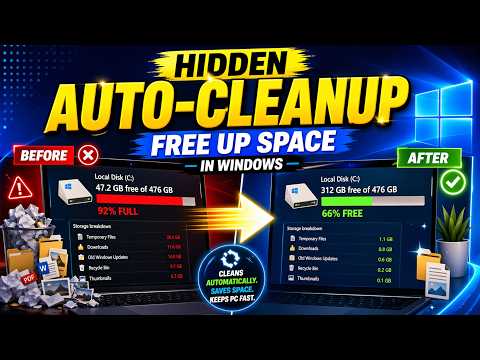
Introduction to Auto-Cleanup in Windows
Keeping your computer clean and organized is crucial for maintaining its performance and ensuring you have enough storage space. Over time, your computer accumulates temporary files, system files, and other items you don’t need. Luckily, Windows has a built-in feature to help you with this task.
What is Auto-Cleanup?
Auto-Cleanup is a feature in Windows that automatically deletes unnecessary files from your computer, freeing up space and helping your computer run more smoothly. This feature is part of the Disk Cleanup tool, which has been available in Windows for many years.
Enabling Auto-Cleanup
To enable the Auto-Cleanup feature in Windows, follow these steps:
- Open the Start menu and type ‘Disk Cleanup’ in the search bar.
- Click on ‘Disk Cleanup’ to open the tool.
- Select the drive you want to clean up (usually the C: drive) and click ‘OK’.
- The tool will scan your computer and calculate how much space you can free up.
- Check the boxes next to the types of files you want to delete, such as temporary files, system files, and delivery optimization files.
- Click ‘OK’ to start the cleanup process.
Scheduling Auto-Cleanup
To schedule the Auto-Cleanup feature to run automatically, you’ll need to use the Task Scheduler:
- Open the Start menu and type ‘Task Scheduler’ in the search bar.
- Click on ‘Task Scheduler’ to open the tool.
- In the Task Scheduler, click on ‘Create Basic Task’ in the right-hand pane.
- Give the task a name, such as ‘Auto-Cleanup’, and click ‘Next’.
- Choose ‘Daily’ or ‘Weekly’ and click ‘Next’.
- Select ‘Start a program’ and click ‘Next’.
- Enter ‘cleanmgr.exe’ in the ‘Program/script’ field and click ‘Next’.
- Click ‘Finish’ to save the task.
Benefits of Auto-Cleanup
The Auto-Cleanup feature has several benefits:
- Frees up space: By deleting unnecessary files, you can free up space on your computer and improve its performance.
- Reduces clutter: Auto-Cleanup helps keep your computer organized by removing temporary files and system files you don’t need.
- Saves time: By scheduling the Auto-Cleanup feature to run automatically, you can save time and effort in maintaining your computer.
Tips and Variations
Here are some additional tips and variations to keep in mind:
- Customize the cleanup process: You can customize the types of files that are deleted during the cleanup process.
- Use the ‘More Options’ tab: In the Disk Cleanup tool, you can click on the ‘More Options’ tab to access additional cleanup options, such as deleting old system files.
- Run the cleanup process as an administrator: To ensure the cleanup process has access to all files, run it as an administrator.
Conclusion
The Auto-Cleanup feature in Windows is a powerful tool for keeping your computer clean and organized. By following the steps outlined in this guide, you can enable the Auto-Cleanup feature and schedule it to run automatically. This will help you free up space, reduce clutter, and save time in maintaining your computer.