Introduction to Windows Crashes
Windows crashes can be frustrating, especially when you’re in the middle of important work. These crashes can occur due to various reasons such as software conflicts, driver issues, or system file corruption. Fortunately, there are several commands that you can use to fix these crashes and get your system up and running smoothly.
Understanding Windows Crashes
Before we dive into the commands, it’s essential to understand why Windows crashes occur. Some common reasons include:
- Overheating of the system
- Driver issues
- Software conflicts
- System file corruption
- Hardware problems
Identifying the Cause of the Crash
To fix the crash, you need to identify the cause. You can do this by checking the error message that appears on the screen or by looking at the Event Viewer logs.
10 Commands to Fix Windows Crashes
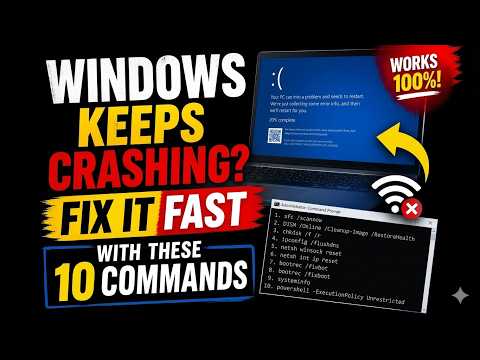
Here are 10 commands that you can use to fix Windows crashes:
- sfc /scannow: This command scans and replaces corrupted system files.
- chkdsk /f /r: This command checks and fixes disk errors.
- DISM /Online /Cleanup-Image /RestoreHealth: This command repairs corrupted system files and registry entries.
- net stop wuauserv: This command stops the Windows Update service, which can help resolve update-related issues.
- net start wuauserv: This command starts the Windows Update service.
- msconfig: This command opens the System Configuration utility, where you can disable unnecessary startup programs and services.
- tasklist: This command displays a list of running processes, which can help you identify resource-intensive programs.
- driverquery: This command displays a list of installed drivers, which can help you identify outdated or corrupted drivers.
- systeminfo: This command displays system information, including the version of Windows, processor type, and memory.
- bcdedit /set {default} bootmenupolicy legacy: This command sets the boot menu policy to legacy, which can help resolve boot-related issues.
Running the Commands
To run these commands, follow these steps:
- Open the Command Prompt as an administrator.
- Type the command and press Enter.
- Follow the prompts to complete the process.
Preventing Future Crashes
To prevent future crashes, make sure to:
- Keep your system and software up to date.
- Run regular virus scans.
- Avoid overheating by cleaning dust from your system and using a cooling pad.
- Disable unnecessary startup programs and services.
- Monitor system resource usage to identify resource-intensive programs.
Conclusion
Windows crashes can be frustrating, but they can be fixed using the commands listed above. By understanding the cause of the crash and using the right command, you can resolve the issue and get your system up and running smoothly. Remember to prevent future crashes by keeping your system and software up to date and monitoring system resource usage.