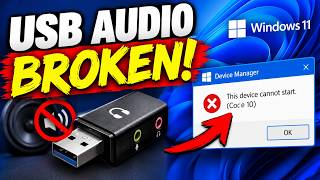
Windows 11 Update Breaks USB Audio Devices
If you recently installed the latest Windows 11 update and suddenly your external speakers or headphones no longer work, you are not alone. Microsoft’s cumulative updates are designed to patch security holes and add new features, but they occasionally hit a snag. In this guide you will learn what causes the problem, how to spot it, and the most reliable steps to get your USB audio back.
What’s Going Wrong?
The Root Cause
Most of the time, the update replaces or rewrites the USB audio driver that the Windows kernel uses to communicate with your hardware. If the new driver bundle is incompatible with certain USB audio chips – especially older models or those from less common manufacturers – the device simply disappears from the device list.
Symptoms
- Device Manager shows the USB audio device as “Not Plugged In” or “USB Audio Device (Not Plugged In)”.
- Sound settings list no output devices.
- System speakers are silent, but the volume slider moves.
- Playing audio works fine in some apps (like the built‑in Media Player) but not in others.
Quick Checks Before Fixing
- Reconnect: Unplug the USB audio device, wait 5 seconds, and plug it back in.
- Try Another USB Port: Some ports (especially USB 3.0) may have power‑management quirks.
- Check Other Computers: Verify the device works on a different machine to rule out hardware failure.
- Run the Windows Audio Troubleshooter: Settings → System → Sound → Troubleshoot.
If the problem persists, follow the steps below.
1. Roll Back the Update
Sometimes the quickest path to a working audio device is to revert to the previous Windows build:
- Go to Settings → Windows Update → View update history → Uninstall updates.
- Look for the “Windows 11 cumulative update for 24‑xx‑xxxx” that was installed last.
- Uninstall it. Reboot and test your audio.
Pro‑Tip: If you still want the rest of the update, consider installing only the security updates first. You can download them from the Microsoft Update Catalog.
2. Update the USB Audio Driver
If rolling back isn’t an option, install a fresh driver:
- Open Device Manager (Right‑click Start → Device Manager).
- Find “Sound, video and game controllers” and expand it.
- Right‑click the USB audio device (often called “USB Audio Device” or the brand name).
- Choose Update driver → Browse my computer for drivers → Let me pick from a list….
- Select Audio endpoint devices → USB Audio Device.
- Click Next. Windows will reinstall a compatible driver.
If Windows reports that it can’t find a driver, go to the manufacturer’s website and download the latest one. Some brands bundle a universal driver in a ZIP file – extract it, and point Device Manager to the folder.
3. Reset the Sound Settings
A corrupted audio endpoint can sometimes be fixed by resetting the Windows audio service:
# Open PowerShell as Administrator
Stop-Service -Name Audiosrv
Stop-Service -Name AudioEndpointBuilder
Start-Service -Name Audiosrv
Start-Service -Name AudioEndpointBuilder
After running the commands, restart the computer and check whether the USB device shows up.
4. Disable Power‑Saving on USB Ports
Windows may disable USB ports to save power, which can affect audio devices.
- Open Device Manager.
- Expand Universal Serial Bus controllers.
- Right‑click each USB Root Hub (USB 3.0/2.0) → Properties → Power Management.
- Uncheck “Allow the computer to turn off this device to save power”.
Reboot and test the audio.
5. Check for BIOS/UEFI Updates
Occasionally, the motherboard firmware has a setting that controls how USB audio devices are initialized. A recent Windows update might trigger a change that the BIOS didn’t anticipate.
- Visit your PC or motherboard maker’s support page.
- Download the latest BIOS/UEFI firmware.
- Follow the vendor instructions carefully to flash the firmware.
After the update, restart and test your USB audio again.
6. Use a Different USB Audio Solution
If you’ve tried everything and your device still refuses to work, it might be time to consider an alternative.
- USB to 3.5 mm adapter: Plug your standard headphones into a USB‑to‑analog adapter that includes its own DAC.
- Bluetooth audio: Pair a Bluetooth headset or speaker. Most Windows 11 builds have robust Bluetooth support.
- External USB DAC: Devices from brands like AudioQuest, FiiO, or Topping provide high‑quality sound and usually work out of the box.
7. File a Support Ticket
If none of the above solutions work, it’s best to get direct help:
- Open the Windows Feedback Hub (search “Feedback Hub” in the Start menu).
- Select Report a problem → Hardware → Audio.
- Describe the issue, attach any screenshots, and submit.
Microsoft often releases targeted patches in response to widespread reports.
Bottom Line
The Windows 11 update breaking USB audio devices is frustrating, but it is usually a driver or compatibility hiccup that can be resolved with a few systematic steps. Start with the simplest fixes – reconnection, port switch, or the built‑in troubleshooter – and move up to rolling back updates or reinstalling drivers. Keep your system’s BIOS and drivers up to date, and you’ll minimise the risk of future audio headaches. Happy listening!
FAQ
Q: Will uninstalling the update remove other security fixes? A: Only the specific cumulative update will be removed. You can then selectively reinstall security patches.
Q: Can I just use the Windows Update “Reinstall” button? A: That works only for optional updates; the Windows 11 cumulative updates are usually mandatory.
Q: Is a USB hub a safe workaround? A: A powered hub can sometimes bypass power‑management issues, but it’s not guaranteed.