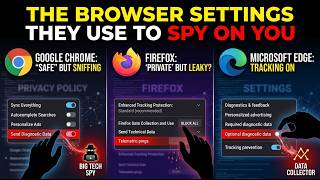
The Browser Settings They Use to Track You
When you surf the web, most of the information you share goes through your browser. The good news is that you can change a few settings to keep those trackers in check. Below is a plain‑English guide that explains the key settings you can tweak and what they do.
Cookies: The Most Common Tracker
Cookies are tiny text files that websites store on your computer. They remember your login state, shopping cart items, or ad preferences. Browsers let you:
- Block all cookies – the strictest option; some sites won’t work.
- Block third‑party cookies – keeps social media and ad networks from setting cookies on sites you don’t visit.
- Clear cookies when you close the browser – useful if you share a computer.
To find the cookie settings, open your browser’s settings menu, look for a “Privacy” or “Cookies” section, and choose the option that feels right for you.
LocalStorage & SessionStorage
Web developers can store larger amounts of data locally using LocalStorage or SessionStorage. Unlike cookies, this data isn’t sent with every request, but it can still be read by scripts on the site and used to build a profile. Most browsers allow you to clear this storage either per site or for the entire browser.
Browser Fingerprinting
Fingerprinting collects bits of information—such as your operating system, screen resolution, installed fonts, and more—to create a unique identifier. Even if you block cookies, fingerprinting can still track you.
What you can do:
- Use browser extensions that add random noise to your fingerprint.
- Disable WebRTC or use a VPN to mask your IP.
- Choose browsers that have built‑in fingerprinting protection.
Third‑Party Tracking Scripts
These are small code snippets added by advertisers or analytics companies. They load from another domain and can read your cookies or local storage. Modern browsers provide a “Tracking Prevention” setting that blocks or limits these scripts.
Tracking Pixels
A tracking pixel is a tiny invisible image that loads when you visit a page. It signals to a server that you’ve viewed the page. You can block these by turning on the browser’s built‑in ad‑blocking or privacy mode.
WebRTC and IP Leakage
WebRTC can expose your real IP address, even when you’re behind a VPN. To prevent this, go to the privacy settings and disable WebRTC or add a “WebRTC leak protection” extension.
Permissions: Camera, Microphone, Location, Notifications
These permissions let websites access hardware or personal data. If you’re not actively using a feature, keep the default “Ask” or set it to “Block.”
Tracking Prevention Settings
Most browsers offer a privacy slider:
- Standard – balances usability and privacy.
- Strict – blocks a lot of trackers but may break some sites.
- Custom – lets you pick exactly what to block.
Choose the level that matches how much privacy you want.
How to Change Settings in Popular Browsers
| Browser | Where to Find the Settings | Quick Tip |
|---|---|---|
| Chrome | Settings ► Privacy and security ► Cookies and other site data | Use the “Block third‑party cookies” toggle |
| Firefox | Options ► Privacy & Security ► Enhanced Tracking Protection | Pick “Strict” for maximum protection |
| Edge | Settings ► Cookies and site permissions ► Cookies and site data | Enable “Block third‑party cookies” |
| Safari | Preferences ► Privacy | Check “Prevent cross‑site tracking” |
Browser Extensions That Help
- uBlock Origin – blocks ads, trackers, and scripts.
- Privacy Badger – learns which third‑party trackers to block.
- HTTPS Everywhere – forces secure connections, reducing data exposure.
Extensions can’t replace the core browser settings but add an extra layer of defense.
Testing Your Privacy
After you adjust settings, use online tools like “https://www.iplocation.net/” or “https://www.ipleak.net/” to confirm that your IP is hidden. For fingerprinting, sites such as “https://panopticlick.eff.org/” give you a score and suggest improvements.
Bottom Line
You don’t need to be a tech wizard to keep your browser from being a passive data collector. By turning off third‑party cookies, enabling tracking prevention, disabling WebRTC, and using privacy‑oriented extensions, you regain control over what information makes it out of your device. Regularly review these settings, especially after browser updates, and stay one step ahead of the trackers that rely on your online habits.