Introduction to Windows Storage Settings
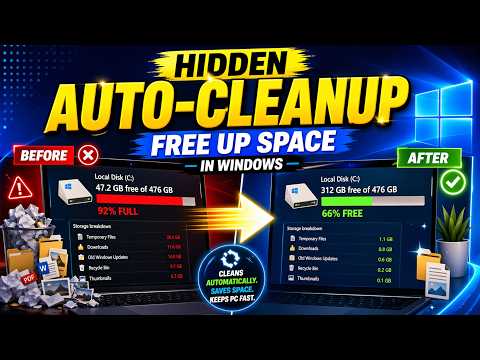
Windows has a hidden feature that allows users to automatically free up space on their devices. This feature is especially useful for those who have limited storage capacity or want to keep their devices clutter-free. In this article, we will explore how to turn on this feature and make the most out of it.
What is the Hidden Feature?
The hidden feature is called ‘Storage Sense’ and it is available on Windows 10 and later versions. Storage Sense is a built-in tool that helps users to manage their storage space by automatically deleting unnecessary files and data.
How to Turn On Storage Sense
To turn on Storage Sense, follow these steps:
- Go to the Start menu and click on ‘Settings’
- Click on ‘System’
- Click on ‘Storage’ from the left sidebar
- Toggle the switch under ‘Storage Sense’ to the ‘On’ position
- Click on ‘Configure Storage Sense or run it now’ to customize the settings
Customizing Storage Sense Settings
Once you have turned on Storage Sense, you can customize its settings to fit your needs. Here are some options you can configure:
- Delete files in the Downloads folder that haven’t been used in a certain number of days: This option allows you to automatically delete files in your Downloads folder that you haven’t used in a while.
- Delete files in the Recycle Bin that haven’t been used in a certain number of days: This option allows you to automatically delete files in your Recycle Bin that you haven’t used in a while.
- Delete previous versions of Windows: This option allows you to delete previous versions of Windows that are taking up space on your device.
- Clean up system files: This option allows you to delete system files that are no longer needed.
Benefits of Using Storage Sense
Using Storage Sense has several benefits, including:
- Freeing up space: Storage Sense helps to free up space on your device by deleting unnecessary files and data.
- Improving performance: By deleting unnecessary files and data, Storage Sense can help to improve the performance of your device.
- Reducing clutter: Storage Sense helps to reduce clutter on your device by deleting files and data that you no longer need.
Tips for Using Storage Sense
Here are some tips for using Storage Sense:
- Regularly review the files that Storage Sense is deleting: It’s a good idea to regularly review the files that Storage Sense is deleting to make sure that it’s not deleting any important files.
- Customize the settings to fit your needs: Storage Sense has several settings that you can customize to fit your needs. Take the time to review these settings and customize them as needed.
- Run Storage Sense regularly: You can run Storage Sense manually by going to the Storage Sense settings page and clicking on ‘Run Storage Sense now’.
Conclusion
Storage Sense is a powerful tool that can help you to automatically free up space on your Windows device. By following the steps outlined in this article, you can turn on Storage Sense and start freeing up space on your device today. Remember to customize the settings to fit your needs and regularly review the files that Storage Sense is deleting to make sure that it’s not deleting any important files.