Introduction
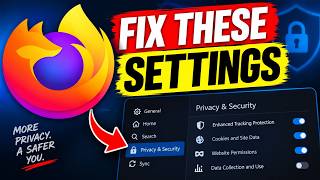
Firefox is known for its strong privacy stance, but most users keep the default settings that still share a surprising amount of data with websites, advertisers, and even the Mozilla organization. If you think your browsing is private, think again – a handful of hidden settings can open up a data pipeline from your machine to the outside world. Below is a step‑by‑step guide that will turn Firefox into a privacy‑first browser without sacrificing usability.
1. Turn Off Telemetry and Usage Reporting
Mozilla collects telemetry data by default to help improve the browser. If you prefer not to share that information:
- Open the menu (three horizontal bars) → Settings → Privacy & Security.
- Scroll to the Firefox Data Collection and Use section.
- Uncheck:
- Allow Firefox to send usage and crash reports to Mozilla
- Allow Firefox to share data with Mozilla to help make the web better
- Restart Firefox.
This stops all routine telemetry packets.
2. Use Enhanced Tracking Protection (ETP)
ETP blocks a wide range of trackers automatically.
- In the Privacy & Security panel, find Enhanced Tracking Protection.
- Choose Strict. This setting blocks:
- Third‑party tracking cookies
- Fingerprinting scripts
- Social media widgets that load in the background
- For added safety, click Exceptions and add any sites you trust but still want stricter controls.
3. Disable Third‑Party Cookies Everywhere
Cookies are how sites remember you, but third‑party cookies let advertisers follow you across sites.
- Under Cookies and Site Data, select Custom.
- Tick Block third‑party cookies.
- If you still want to keep session cookies for sites you trust, click Exceptions and add those domains.
4. Turn Off the Pocket Save Button
Pocket automatically saves browsing history, which can be used for profiling.
- In Settings → Home, find Pocket.
- Uncheck Automatically save to Pocket.
- This keeps your saved articles strictly local.
5. Disable the “Firefox Accounts” Sync Feature
Firefox Sync is convenient but can expose your bookmarks, history, and passwords if someone gains access to your account.
- Click the profile icon in the upper right and select Sign Out.
- If you need bookmarks and tabs across devices, consider using a password‑protected, locally encrypted sync instead of the default.
6. Enable “Do Not Track” Header
Some sites respect a Do‑Not‑Track flag.
- Go to Privacy & Security.
- Under Tracking Protection, tick Send a “Do Not Track” request to sites.
7. Harden DNS Settings
DNS leaks can reveal the sites you visit.
- In Settings → General, scroll to Network Settings and click Settings….
- Check Use secure DNS and choose a provider that does not log queries, e.g., Cloudflare (1.1.1.1) or Quad9 (9.9.9.9).
- Optionally, enable Turn on DNS over HTTPS (DoH) for additional encryption.
8. Disable Automatic Updates? (Optional)
Automatic updates are usually safe, but if you want full control:
- Open about:config (type it in the address bar and press Enter).
- Search for
app.update.auto. - Double‑click to toggle from true to false.
- This prevents Firefox from downloading updates in the background. Remember to update manually to stay protected.
9. Restrict Location Sharing
Some sites request your location. By default, Firefox will prompt you, but you can block it outright.
- In Privacy & Security, scroll to Permissions.
- Click Settings… next to Location.
- Select Block for all sites.
10. Manage Permissions for Camera, Microphone, and Screen Share
If you rarely use these features, it’s safer to deny all requests.
- In the same Permissions section, click Settings… for each device.
- Set the default to Block and remove any sites you previously allowed.
11. Use “about:config” for Advanced Tweaks
For users comfortable with more granular control, the about:config interface allows you to adjust a handful of privacy‑oriented preferences.
| Preference | Recommended Value | Purpose |
|---|---|---|
privacy.firstparty.isolate | true | Isolates cookies per first‑party domain, stopping cross‑site tracking. |
browser.send_pings | false | Disables pre‑fetching of links that can leak your browsing intent. |
dom.ipc.plugins.flash.subprocess.crashreport | false | Turns off crash reporting for Flash (rarely needed). |
privacy.resistFingerprinting | true | Makes it harder for sites to uniquely identify you through hardware or software fingerprints. |
To change a value, double‑click the entry and input the number or boolean. Be sure you understand each setting before altering.
12. Keep Your Software Fresh
Even with the best settings, outdated software can contain security holes. Make sure you:
- Periodically check for Firefox updates.
- Keep your operating system and drivers up to date.
- Use a reputable antivirus or anti‑malware solution.
13. Test Your Configuration
After making these changes, you can verify that your browser is behaving as expected:
- Visit a site like https://www.privacytest.io to see how many third‑party requests are blocked.
- Use the Firefox built‑in Network Monitor (Shift + F2, type
netmon→ Enter) to watch live requests and ensure no unexpected trackers are being loaded. - Check the about:performance page to ensure there are no background processes using significant resources.
Conclusion
Privacy is a continuous process, not a one‑time fix. By turning off telemetry, enforcing strict tracking protection, blocking third‑party cookies, and tightening permissions, you can dramatically reduce the amount of data you share while still enjoying a fast and functional web experience. These settings are straightforward to adjust and can be revisited whenever you’re curious about how your browser is behaving. Stay vigilant and keep your tools updated – that’s the real key to privacy.