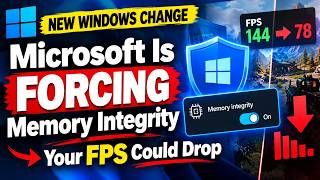
Microsoft’s Hidden FPS Killer (and How to Fix It)
If you’ve noticed your computer suddenly dropping frames while you’re gaming, there might be a quiet culprit hiding in the Windows settings. Microsoft’s default “Background recording” feature is on by default, and it can silently eat CPU resources—especially on laptops and lower‑end PCs. In this post we’ll explain exactly what that setting does, why it hurts your FPS, and how you can disable it quickly.
What is the Background Recording Feature?
Windows 10 and Windows 11 come with the Xbox Game Bar, a lightweight overlay that lets you take screenshots, record gameplay, view performance counters, and more. The Game Bar can capture your screen in the background whenever you press a key combo (usually Win + G). By default, the system starts recording automatically when you launch a game, even if you never hit the record button. The recording is stored as a short clip that can later be reviewed or shared.
While this is handy for casual gamers, the background recording process uses CPU and I/O bandwidth. On systems with modest hardware, the extra overhead can push frame rates down—especially during graphically intense moments.
How the Setting Works Under the Hood
- CPU usage: The recorder grabs frames from the GPU and writes them to disk. Even if the clip is short, the process is continuous.
- Disk I/O: Writing video frames to a hard drive or SSD is I/O‑heavy. If your drive is already busy, the OS will throttle your game’s rendering.
- Thread scheduling: The recording thread runs at a priority that competes with the game process, meaning the game occasionally loses scheduling time.
All of this adds up to a measurable drop in FPS—often 5–15% on older machines, and sometimes more on laptops where the CPU is already under load.
Quick Checklist to Spot the Problem
- Open the Game Bar: Press Win + G while in a game. If you see a red “REC” indicator in the corner, recording is active.
- Look at the task manager: In the “Performance” tab, note the CPU and disk activity. A spike around 20‑30% while gaming can signal background recording.
- Check the settings: Navigate to Settings → Gaming → Captures. The “Record in the background while I’m playing a game” switch should be on by default.
If you’re seeing one or more of these signs, it’s a good bet that the background recording feature is hurting your performance.
Step‑by‑Step Guide to Disable Background Recording
- Open Settings: Press Win + I.
- Go to Gaming: On the left side, click “Gaming”.
- Select Captures: In the sidebar, choose “Captures”.
- Turn it Off: Find the toggle labeled “Record in the background while I’m playing a game” and switch it to Off.
- Optional – Disable the Game Bar entirely:
- In the same Gaming menu, click “Game bar”.
- Toggle the “Record game clips, screenshots, and broadcast using Game bar” switch to Off.
After turning the feature off, restart your computer or simply relaunch your game to confirm the FPS improvement.
Additional Performance Tweaks
Disabling background recording is usually enough, but if you’re still battling low frame rates, try these complementary tweaks:
- Update GPU drivers: An outdated driver can cause inefficiencies.
- Adjust in‑game graphics settings: Lowering VSync or shadow quality can free up GPU headroom.
- Check for background apps: Close any non‑essential software (cloud sync, antivirus scans, etc.) that might be running.
- Set the game’s priority to High: Open Task Manager → Details → right‑click the game’s process → Set priority → High.
Why Microsoft Keeps It On
Microsoft designed the background recording feature to be useful for creators and gamers who want to capture moments quickly. The trade‑off is a small amount of performance hit that is negligible on high‑end systems. Unfortunately, for users on budget hardware or laptops, the same feature can become a silent performance killer.
Bottom Line
If you’re noticing a drop in frames while gaming, the first thing you should check is whether Windows is silently recording your gameplay in the background. Disabling the “Record in the background while I’m playing a game” toggle is a free, hassle‑free step that can restore missing frames and make your gaming experience smoother.
Give it a try, and if you find yourself wanting to record gameplay in the future, you can always re‑enable the feature or use a dedicated screen‑capture app that’s optimized for your hardware.
Happy gaming!