Windows Features You Should Disable Right Now! 2026

Optimize Your Windows Experience: Features to Disable Now

Introduction to Windows Features Windows has a multitude of features that can be both beneficial and unnecessary. Some of these features may be consuming system resources, compromising privacy, or simply cluttering the interface. In this article, we will explore some Windows features that you should consider disabling for a more streamlined and secure computing experience. Features to Disable for Better Performance Windows Search Indexing: If you rarely use the search function in Windows, you can disable the search indexing feature to free up system resources. To do this, go to Settings > Privacy & security > Searching Windows, and toggle off Windows Search Indexing. Location Services: If you’re concerned about privacy, you might want to disable location services. Go to Settings > Privacy & security > Location, and toggle off Location services. Cortana: Cortana is a virtual assistant that can be useful, but if you don’t use it, you can disable it. Go to Settings > Applications > Applications & features, search for Cortana, and uninstall or disable it. Disabling Unnecessary Features for Security Internet Information Services (IIS): If you’re not using IIS for web development or other purposes, it’s a good idea to disable it for security reasons. Go to Control Panel > Programs and Features > Turn Windows features on or off, and uncheck Internet Information Services. Windows Defender Firewall Exceptions: Regularly review the exceptions list in Windows Defender Firewall to ensure that no unnecessary applications are allowed to bypass the firewall. Go to Control Panel > System and Security > Windows Defender Firewall, and review the exceptions under Allow an app or feature through Windows Defender Firewall. Customizing Windows for a Personalized Experience Notifications: Customize which apps can send notifications to minimize distractions. Go to Settings > System > Notifications & actions, and toggle off notifications for unnecessary apps. Live Tiles: If you find live tiles distracting or unnecessary, you can turn them off. Go to Start > Settings > Personalization > Start, and toggle off Show more tiles on Start. Enhancing Privacy Diagnostic Data: Limit the diagnostic data that Windows collects. Go to Settings > Privacy & security > Diagnostics & feedback, and choose the Basic diagnostic data setting. Advertising ID: Disable the advertising ID to prevent personalized ads. Go to Settings > Privacy & security > General, and toggle off Let apps use advertising ID to make ads more interesting to you based on your app usage. Conclusion Disabling unnecessary Windows features can significantly enhance your computing experience by improving performance, security, and privacy. Regularly review and adjust your Windows settings to ensure that your system is tailored to your needs and preferences. ...
April 13, 2026
Windows 11 Start Menu SUCKS? Replace It Free in 5 Minutes

Replace Windows 11 Start Menu for Free in 5 Minutes

Introduction to Windows 11 Start Menu Replacement The Windows 11 Start Menu has received its fair share of criticism since its release. While it offers a sleek and modern look, many users find it lacking in terms of functionality and customization options. If you’re one of the many who are not satisfied with the default Start Menu, you’re in luck. Replacing it with a more functional alternative can be done for free in just 5 minutes. ...

April 7, 2026
Windows 11 Has a Problem… Can Microsoft Fix It?

Resolving Windows 11 Issues: A Path to Stability and Security

Introduction to Windows 11 Windows 11, the latest operating system from Microsoft, has been making waves in the tech world. With its sleek design, improved performance, and enhanced security features, it’s no wonder that many users have made the switch. However, like any new software release, Windows 11 is not without its problems. Common Issues in Windows 11 One of the most significant issues plaguing Windows 11 is its hardware compatibility. Many users have reported problems with their devices, ranging from incompatible drivers to faulty installations. This can be frustrating, especially for those who rely on their computers for work or other essential activities. ...

April 6, 2026

Secure Your Online Presence: Why You Should Stop Saving Passwords in Edge

Introduction to Password Security in Edge Saving passwords in your web browser can be a convenient way to manage your online accounts, but it’s not the most secure method. When you save your passwords in Microsoft Edge, they are stored locally on your computer. If your device is compromised or accessed by an unauthorized person, your saved passwords can be easily retrieved. Understanding the Risks Your passwords can be accessed if your device is shared with others or if it’s stolen. If malware infects your computer, hackers can potentially extract your saved passwords. Shared devices in public places or workplaces can also pose a risk if you’ve saved passwords in Edge. Alternatives to Saving Passwords in Edge Password Managers Password managers are secure tools that store your login credentials in a highly encrypted vault. They can generate strong, unique passwords for each of your accounts and autofill them when you need to log in. Popular password managers include LastPass, 1Password, and Dashlane. These services offer additional security features such as two-factor authentication, password sharing, and alerts for potential security breaches. ...

April 4, 2026
Speed Up Your PC in Minutes 🚀 | Ultimate Windows Cleanup Script

Speed Up Your PC in Minutes with the Ultimate Windows Cleanup Script

Speed Up Your PC in Minutes 🚀 | Ultimate Windows Cleanup Script Are you tired of dealing with a slow PC? Do you want to breathe new life into your computer without breaking the bank? Look no further! In this post, we’ll explore a simple yet powerful way to speed up your Windows PC in just a few minutes. What Slows Down Your PC? Before we dive into the solution, let’s quickly explore what might be slowing down your PC. Here are some common culprits: ...

April 2, 2026
You Don't Own Your PC Unless You Do This

Take Control of Your PC: A Step-by-Step Guide to Administrator Privileges

Introduction to PC Ownership When you buy a PC, you might think you own it outright, but that’s not necessarily the case. Many PCs come with pre-installed software and operating systems that can limit your control over your device. To truly own your PC, you need to take a few steps to ensure you have full administrator privileges and can customize your device as you see fit. Understanding Administrator Privileges Administrator privileges give you complete control over your PC, allowing you to install software, change system settings, and modify system files. However, many PCs come with limited user accounts that restrict your ability to make changes to your system. ...

March 29, 2026
The Control Panel Is Dead (Microsoft Just Made It Official)

The Control Panel Is Dead: How Microsoft's Latest Move Affects You

The Control Panel Is Dead (Microsoft Just Made It Official) The control panel, a staple of Windows operating systems for decades, has officially been put to rest by Microsoft. This move marks a significant shift in how users will interact with their operating systems, emphasizing a more streamlined and user-friendly approach. What Does This Mean for Users? The Settings app will now be the primary hub for managing system settings. Users will no longer have to navigate between two different interfaces (Control Panel and Settings app) to adjust their system settings. Microsoft aims to provide a more cohesive and intuitive experience for Windows users. The Evolution of System Management Over the years, Windows has seen significant changes in how system settings are managed. From the early days of Windows 3.1 to the latest version of Windows 11, the way users interact with their operating system has evolved substantially. The introduction of the Settings app in Windows 8 marked the beginning of the end for the Control Panel. ...

March 28, 2026
What Happens If I Don’t Update Windows 11

The Importance of Updating Windows 11: Security, Features, and More

Introduction to Windows 11 Updates Windows 11, the latest operating system from Microsoft, comes with a plethora of features and security enhancements designed to protect your computer and data. One crucial aspect of maintaining your system’s health and security is keeping it updated. But what happens if you don’t update Windows 11? Importance of Updates Updates are essential for any operating system as they provide fixes for known issues, patch security vulnerabilities, and sometimes add new features to enhance user experience. For Windows 11, these updates can range from minor tweaks to major overhauls, all aimed at making your computing experience smoother and safer. ...

March 27, 2026
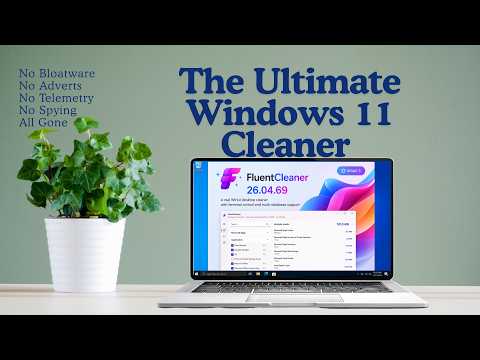
The Ultimate Windows 11 Cleaner Utility (2026 Guide)

The Ultimate Windows 11 Cleaner Utility: A 2026 Guide to Improve Performance

Introduction to Windows 11 Cleaner Utility Windows 11 is the latest operating system from Microsoft, designed to provide a seamless and efficient user experience. However, like any other operating system, it can become cluttered with temporary files, system logs, and other data that can slow down your computer. This is where a Windows 11 cleaner utility comes in - a software tool designed to clean up your system, freeing up space and improving performance. ...

March 26, 2026