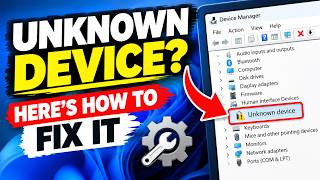
Unknown Device? Quick Fix Guide
Why It Happens
When you plug a new piece of hardware into your PC—like a mouse, printer, or USB stick—Windows may show a yellow exclamation point or list the item as “Unknown Device”. It means the operating system cannot match the hardware to a driver. This is normal for brand‑new or rarely used devices.
Common Causes
- Driver not installed or outdated
- Device uses a USB‑3.0 controller that older PCs don’t recognize
- BIOS/UEFI missing the firmware for the component
- Malware has corrupted driver files
- A faulty cable or port
Step‑by‑Step Fixes
Open Device Manager
- Press Windows + X and choose “Device Manager”.
- Look for items marked with a yellow triangle.
- Right‑click the unknown device and select “Properties”.
- Note the Hardware IDs under the Details tab. These strings help identify the vendor and product.
Search for the Correct Driver
- Open a web browser on another device and search for the Hardware IDs you just copied. This often leads to the manufacturer’s driver page.
- Download the latest driver that matches your Windows version (32‑bit or 64‑bit).
- Back in Device Manager, right‑click the device, choose “Update driver”, then “Browse my computer for driver software” and point it to the folder you downloaded.
Install Windows Update Drivers
- If a vendor driver isn’t available, let Windows try its own database.
- In the same context menu, select “Update driver” → “Search automatically for updated driver software”.
- Windows will often find a generic driver that works.
Check BIOS/UEFI Settings
- Restart your PC and enter the BIOS/UEFI screen (usually by pressing Delete, F2, or Esc during boot).
- Ensure that legacy USB support is enabled if you are using a USB‑2.0 device.
- Save changes and reboot.
Uninstall and Re‑plug
- In Device Manager, right‑click the unknown device and choose “Uninstall device”.
- Disconnect the hardware, wait 30 seconds, then reconnect. Windows will attempt to reinstall the driver automatically.
Scan for Malware
- Run a full system scan with Windows Defender or a trusted third‑party scanner.
- Some malware disguises itself as driver files and can block proper installation.
Try a Different Port or Cable
- Plug the device into another USB port.
- Swap the cable if you have a spare one.
- A defective port or cable is a frequent culprit.
Contact the Manufacturer
- If driver downloads are missing or the device still shows as unknown, visit the manufacturer’s support site.
- Many companies offer generic drivers or firmware updates that resolve the issue.
Use the Hardware ID to Identify the Vendor
- Hardware IDs follow a pattern like PCI\VEN_XXXX&DEV_XXXX.
- A quick web search of the VEN_ and DEV_ codes often reveals the brand name, making it easier to find the right driver.
When All Else Fails: Reset Windows
- As a last resort, consider a Windows reset or reinstall. Back up important data first.
- This restores all driver libraries to a clean state.
Preventing Unknown Device Warnings
- Keep Windows and device drivers up to date via Windows Update.
- Store a small collection of generic drivers on a USB stick for quick reference.
- Avoid using cheap, brand‑name‑blind USB accessories; they are more likely to need manual driver installation.
- Keep a backup of your system image so you can restore if a driver issue becomes widespread.
Final Thoughts
Seeing “Unknown Device” on your computer can feel alarming, but it’s usually a simple driver mismatch. By following the steps above, most users can resolve the issue within minutes. Treat the warning as a friendly reminder that your PC needs a tiny bit more information to talk to new hardware. Once you get that driver installed, you’ll enjoy a smoother, more reliable computing experience.