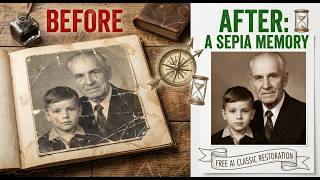
Photo Restoration: Restore Damaged Photos in Just Minutes for Free
Many of us have treasured family snapshots that have faded, torn, or become cracked over time. The good news is that you don’t need a pricey service or a deep technical background to bring those memories back to life. With a handful of free tools and a few simple steps, you can repair a photo in less than 15 minutes from the comfort of your home.
Why Restore Photos?
- Preserve memories – Old pictures are often the only record of family events or landscapes that no longer exist.
- Save money – Professional restoration can cost $50–$200 per image.
- Keep privacy – Restoring locally means your images stay on your device.
Common Types of Photo Damage
- Fading or Yellowing – Often caused by light exposure or old paper.
- Scratches and Tears – Physical damage from handling or storage.
- Cracks and Crumbling – Especially in prints made on paper that has degraded.
- Water Damage – Smudges, stains, or warped edges from moisture.
- Color Shifts – Photos that have lost their original color balance.
What You’ll Need
- A computer or smartphone.
- Internet access for online tools.
- A scanner (optional, if you’re working from a physical print).
Step‑by‑Step Guide
1. Scan or Capture the Photo
If you’re working with a physical print, start by scanning it at 300 dpi or higher. For a quick fix, you can also take a high‑resolution photo with a smartphone.
2. Choose a Free Restoration Tool
| Tool | Platform | Strengths |
|---|---|---|
| Photopea | Web | Easy to use, works directly in the browser. |
| GIMP | Windows/macOS/Linux | Powerful, downloadable, no internet needed. |
| Snapseed | iOS/Android | Great for mobile edits, simple touch controls. |
3. Using Photopea (Web) – The Fastest Option
- Open
https://www.photopea.com. - Drag your photo into the workspace.
- Use the Spot Healing Brush (shortcut
J) to click on scratches or spots. - For torn edges, select the Rectangular Marquee Tool (shortcut
M), copy (Ctrl+C) the clean area, and paste it over the tear. - Adjust the Levels (Image → Adjustments → Levels) to fix faded or yellowed tones.
- Save the result (
File → Export As → JPEG).
4. Using GIMP (Desktop) – For More Control
- Launch GIMP and open your image.
- Duplicate the layer (
Ctrl+Shift+D). Work on the copy to keep the original intact. - Select Heal Tool (shortcut
H) or Clone Tool (shortcutC). Paint over damaged areas. - Use the Color Balance tool (Colors → Color Balance) to correct any color shifts.
- Sharpen slightly (
Filters → Enhance → Sharpen). - Export the final image (
File → Export As).
5. Using Snapseed (Mobile) – If You’re On the Go
- Open your photo in Snapseed.
- Tap Tools → Healing and brush over scratches.
- Use Tune Image to adjust brightness, contrast, and saturation.
- For tears, use Details to sharpen and then carefully zoom and touch up the area with the healing tool.
- Save the edited photo.
Tips for Best Results
- Work in layers – Always keep a copy of the original image.
- Start with small edits – Fix the biggest problems first, then refine.
- Use a high‑resolution source – The more pixels you start with, the better the outcome.
- Avoid over‑sharpening – It can create noise and look artificial.
- Check color balance – Sometimes photos look too warm or cool after editing.
Privacy & Safety
All the free tools listed run locally or on a secure website. Photopea, for example, runs entirely in the browser and does not upload your images to a public server. If you’re concerned about privacy, download a tool like GIMP and keep the entire process offline.
When to Seek Professional Services
- Extensive damage that requires physical cleaning.
- Archival quality needed for museum or genealogical records.
- High‑value artwork where a mistake could be costly.
If you hit a wall with free tools, a professional can provide advanced techniques like layer masks, frequency separation, or manual retouching that are beyond basic software.
Conclusion
Restoring damaged photos no longer means spending money or waiting for a service. With free, user‑friendly tools like Photopea, GIMP, and Snapseed, you can bring a faded, scratched, or torn picture back to life in minutes. By following the simple steps above, you’ll preserve family history, create sharper memories, and enjoy the satisfaction of a job well done—all without breaking the bank.