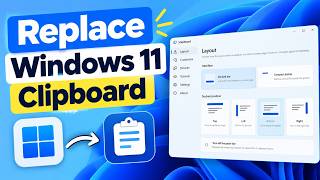
Snipboard: A Better Clipboard Manager for Windows 11
The Windows clipboard is handy for short‑term copy‑paste tasks, but it quickly runs out of space and can lose data if you restart your computer. A clipboard manager keeps a history of everything you copy, lets you search past items, and can even sync across devices. Snipboard is a lightweight, free tool that adds powerful clipboard features without the bulk of larger utilities.
Why Your Clipboard Needs an Upgrade
- Limited history – The built‑in Windows clipboard remembers only the last item. If you accidentally replace a note or a link, it disappears forever.
- No search – Finding a previous copy in the default clipboard is impossible.
- Lack of organization – When you collect many snippets, nothing keeps them sorted, and you must hunt through a long list.
A clipboard manager solves these problems, giving you a single place to store text, images, files, and more. Snipboard takes this a step further with a clean interface and smart features.
What Is Snipboard?
Snipboard is a free, open‑source clipboard manager designed for Windows 11. It stores every copy you make, including plain text, formatted text, images, and links. The app runs in the background and can be launched with a simple hotkey, so it feels like a natural extension of the operating system.
Core Features
- Unlimited history – Store thousands of items without worrying about memory limits.
- Fast search – A real‑time search bar lets you find any snippet by keyword, date, or type.
- Tagging and folders – Group items into custom folders or assign tags for quick retrieval.
- Clipboard history bar – A lightweight toolbar appears on the left side of the screen, displaying the most recent clips for instant access.
- Sync across devices – With a free account, you can sync snippets between a Windows 10, 11, or even a Mac computer.
- Auto‑paste – Assign a keyboard shortcut to paste the last item automatically.
- Secure storage – Optional password protection locks the Snipboard database so only you can view it.
Installing and Getting Started
- Download the installer from the official Snipboard site or the Microsoft Store.
- Run the setup and accept the default options – it will register a global hotkey (Ctrl + Shift + S) to launch the main window.
- Open Snipboard by pressing the hotkey, or click the system tray icon.
- In the first run, the app will ask for clipboard permissions. Grant access so it can capture your copies.
Using Snipboard
- Copy an item – Simply copy any text or image as usual. Snipboard logs it automatically.
- View history – Press the hotkey or click the tray icon to open the window. The most recent clip appears at the top.
- Search – Start typing in the search field; results appear instantly.
- Organize – Drag an item into a folder or click the tag icon to assign a new label.
- Paste – Click the item or press its assigned hotkey to paste it into the active application.
Customizing Shortcuts and Settings
- Open the settings panel from the main window.
- Choose Hotkeys and assign your preferred combinations for opening Snipboard, pasting the last clip, or deleting an item.
- In Appearance, pick a light or dark theme that matches Windows 11.
- Under Security, enable a password if you want to keep your snippets private.
Real‑World Benefits
| Scenario | How Snipboard Helps |
|---|---|
| Working on a report | Quickly retrieve bullet points or quotes from earlier searches. |
| Coding | Store code snippets with syntax highlighting and paste them with a single click. |
| Emailing | Keep a library of email templates and insert them instantly. |
| Research | Capture multiple URLs, screenshots, and notes in one place for later review. |
Because Snipboard keeps everything organized, you spend less time scrolling through the clipboard and more time focusing on what matters.
Comparing Snipboard to the Default Clipboard
| Feature | Windows Default | Snipboard |
|---|---|---|
| History depth | One item | Unlimited |
| Search | None | Real‑time search |
| Organization | None | Folders, tags |
| Sync | None | Optional cross‑device sync |
| Security | No password | Optional password |
The difference is clear: Snipboard turns a basic copy‑paste tool into a full‑blown productivity assistant.
Where to Get It
Snipboard is available for free through the Microsoft Store. A paid upgrade unlocks cloud sync and additional customization options, but the free tier covers most everyday needs. Simply search for “Snipboard” in the Store, click install, and you’re ready to start.
Frequently Asked Questions
Q: Does Snipboard store my data online? A: Only if you opt into cloud sync. By default all snippets stay on your device.
Q: Can I import existing clipboard history? A: No built‑in import, but you can paste items manually into Snipboard to add them.
Q: Is it safe for sensitive information? A: The optional password lock adds an extra layer of protection. For highly confidential data, consider disabling the auto‑paste feature.
Final Thoughts
For anyone who spends a lot of time copying and pasting, Snipboard makes the process smoother, faster, and far less error‑prone. Its simple interface, powerful search, and organizing tools help you keep your digital workspace tidy. Give it a try and watch how many more clicks you’ll save each day.