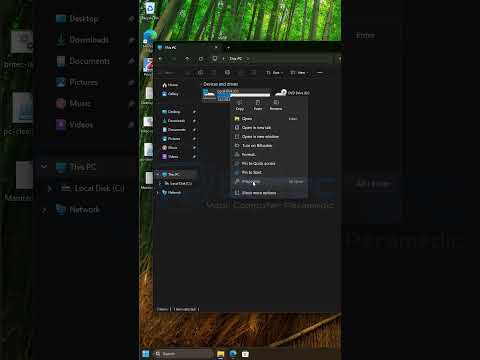
Introduction to File Icons and Overlays
File icons and overlays are graphical representations that provide additional information about a file or folder. They can indicate the file type, its status, or any actions that have been taken on the file. One common overlay is a blue arrow, which can be seen on some files in your computer.
What Do Blue Arrows Mean?
The blue arrow overlay is typically used by Windows to indicate that a file has been compressed. Compressed files are stored in a way that reduces their size, making them easier to store and transfer. This is useful for freeing up space on your hard drive or sending large files over the internet.
Why Are My Files Compressed?
There are a few reasons why your files may be compressed:
- Storage Space: If you are running low on storage space, Windows may automatically compress some of your files to free up room. This is especially true if you have a small hard drive or solid-state drive (SSD).
- File Transfer: Compressing files makes them easier to send over the internet. If you have sent files to someone or downloaded files from the internet, they may have been compressed to reduce transfer time.
- Manual Compression: You may have intentionally compressed files yourself to save space or make them easier to transfer.
How to Check if a File Is Compressed
To check if a file is compressed, follow these steps:
- Right-click on the file and select ‘Properties’.
- In the Properties window, click on the ‘General’ tab.
- If the file is compressed, you will see a checkbox that says ‘Compress contents to save disk space’ or a similar message.
Working with Compressed Files
Compressed files can be used just like regular files. However, there are a few things to keep in mind:
- Performance: Compressed files may take a little longer to open or load, since your computer needs to decompress them first.
- Editing: If you edit a compressed file, it may be automatically decompressed when you save your changes.
- Transferring: If you transfer a compressed file to another computer, it may remain compressed or be decompressed, depending on the settings of the receiving computer.
How to Compress and Decompress Files
To compress a file:
- Right-click on the file and select ‘Properties’.
- In the Properties window, click on the ‘General’ tab.
- Check the box that says ‘Compress contents to save disk space’ to compress the file.
To decompress a file:
- Right-click on the file and select ‘Properties’.
- In the Properties window, click on the ‘General’ tab.
- Uncheck the box that says ‘Compress contents to save disk space’ to decompress the file.
Conclusion
In conclusion, the blue arrow overlay on your files indicates that they have been compressed to save disk space or make them easier to transfer. You can check if a file is compressed by looking at its properties, and you can compress or decompress files manually if needed. By understanding how compressed files work, you can make the most of your computer’s storage space and make file transfers more efficient.