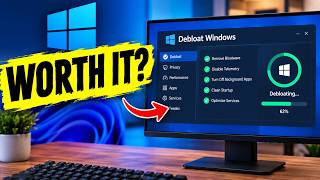
Why Debloating Windows May Hurt Your PC – What Actually Works
Debloating Windows is a buzzword that shows up everywhere, from forum posts to quick‑fire guides. The idea is simple: remove unused features and services, then your computer should feel lighter and faster. In practice, the results are mixed at best and can even backfire. Let’s unpack what debloating really does, why it can be misleading, and what you can do to improve performance in a safe, practical way.
What is Debloating?
Debloating refers to trimming Windows down to the essentials. It usually involves:
- Turning off built‑in services (e.g., Windows Search, Superfetch)
- Disabling startup programs
- Removing optional Windows features (Media Player, .NET Frameworks)
- Adjusting power plans and visual effects
The promise is that fewer moving parts mean less CPU and memory usage.
Why the Results are Often Overpromised
- Windows is Designed for Flexibility – Features are built to work together. Turning off one component can lead to hidden dependencies that become bottlenecks.
- Modern Windows Uses the Same Core Engine – The underlying OS core is what drives speed, not the extras. Removing a feature rarely cuts the core workload.
- User Experience Can Deteriorate – Some debloating steps disable conveniences (like Cortana or File Explorer preview) that users rely on, leading to a slower workflow.
- Measurement Bias – Many debloat tutorials measure speed before and after on the same test machine, but other variables (background downloads, Windows Update) can skew results.
Because of these factors, many users find that debloating provides marginal gains or, worse, new problems.
Practical Ways to Actually Speed Up Windows
Instead of a blanket removal of components, focus on the areas that truly impact everyday usage.
1. Optimize Startup Programs
- Press Ctrl + Shift + Esc to open Task Manager.
- Go to the Startup tab.
- Disable anything that isn’t essential, like cloud sync apps or old utilities.
Even a few programs running in the background can slow boot time.
2. Tune Power Settings for Performance
- Open Settings → System → Power & battery.
- Switch to the Best performance plan or create a custom plan.
- Disable “Turn on battery saver automatically” if you’re on a desktop.
A performance‑focused power plan keeps the CPU running at higher frequencies.
3. Keep Windows Updated
Paradoxically, updates can improve speed by fixing bugs and optimizing resource usage.
- Go to Settings → Windows Update.
- Make sure Automatic updates are on.
- Periodically check for optional updates (like drivers) that may boost performance.
4. Use a Solid‑State Drive (SSD)
If you’re still on a mechanical hard drive, consider switching to an SSD. Even a 250 GB SSD can drastically reduce load times for the OS and applications.
5. Manage Visual Effects Smartly
- Open System → About → Advanced system settings → Advanced → Performance Settings.
- Select Adjust for best performance or manually turn off specific animations.
Visual effects are inexpensive but can tax older GPUs.
6. Clean Up Disk Space
A cluttered drive can slow file indexing and overall performance.
- Use Storage Sense (Settings → System → Storage) to automatically delete temporary files.
- Run Disk Cleanup (search for it in the Start menu) and check system files.
7. Monitor Background Processes
- Open Task Manager → Processes.
- Look for high CPU or memory usage.
- End or set a low priority for processes that are not essential.
If a process is hogging resources, it’s often the cause of sluggishness.
When Debloating is Safe and Useful
There are scenarios where debloating can be beneficial, especially on low‑spec devices or laptops with limited battery life:
- Remove legacy features like Windows Media Player if you never use them.
- Disable Windows Search on systems with no SSD; it can cause disk thrashing.
- Turn off telemetry services if privacy is a concern and you’re comfortable with the trade‑off.
Always backup your system or create a restore point before making aggressive changes. This way, you can revert if something breaks.
Bottom Line
Debloating Windows is not a magic bullet. It may shave off a few milliseconds of boot time, but it rarely transforms a slow PC into a snappy machine. Instead, focus on proven performance tweaks: manage startup programs, choose a performance‑oriented power plan, keep the OS updated, use an SSD, and clean up disk space. These steps are straightforward, have clear benefits, and carry minimal risk.
If you still want to remove unwanted Windows features, do so cautiously. Use the Windows Features dialog (control panel → Programs → Turn Windows features on or off) and only uncheck items you know you won’t need.
Debloating is part of a broader performance strategy. By understanding where real gains come from, you can make smarter choices that genuinely improve your daily computing experience.